Installing 3x-ui in 10 minutes
I've installed 3x-ui dozens of times — it's the fastest way to get a working panel without Docker and without wrangling a reverse proxy. One command, and in a couple of minutes you have a login, password, port, and secret path. Below — the route from a clean VPS to logging into the panel. Enter your own data in the builder above and it'll substitute it into the commands.
What you'll need
3x-ui is undemanding. The minimum it lives on without whining:
- A VPS with a white IP, 1 vCPU / 1 GB RAM is plenty, Ubuntu 22.04 or 24.04. Location — outside the zone where your traffic gets examined under a magnifying glass.
- SSH access as root.
- A domain is not required — unlike Docker-based panels, 3x-ui comes up right by IP, and TLS for protocols you set up later inside the panel.
The one typical mistake at the start is a "cheap" IP from a dirty subnet that's been on blacklists for six months. You can layer as much Reality on it as you like — it'll work every other time. There's a separate breakdown on IP whiteness; for now just get an address from a decent provider.
Installing the panel in one command
Log in over SSH as root and run the official installer. It'll download the latest build itself, place the binary, bring up a systemd service, and pull in fail2ban too:
bash <(curl -Ls https://raw.githubusercontent.com/MHSanaei/3x-ui/master/install.sh)This installs 3x-ui v3.4.2, with Xray 26.6.27 riding inside. The panel interface is in Russian, nothing extra to install.
During installation the script will ask whether to set your own login/password/port — you can agree, or leave it blank, in which case it'll generate a random login, password, port, and webBasePath (the secret path to the panel). Random values are exactly the right choice: a predictable admin/admin on port 54321 is found by scanners within a day.
Grabbing the credentials
At the very end the installer prints the ready login credentials. If you scrolled past them, pull them out with the management command:
x-ui settingsIt'll show the current username, password, port, and webBasePath. You assemble the panel address from them:
http://SERVER_IP:PORT/webBasePath/The trailing slash on the path is mandatory. Go to this URL, enter the login and password — you're in the panel.
The x-ui command is your service control console. The main things you'll use:
x-ui status     # is the service and Xray inside it alive
x-ui restart    # restart the panel
x-ui settings   # show login/password/port/path
x-ui           # interactive menu (change password, port, enable/disable)
What the installer did for you
So there's no sense of magic — here's what actually happened:
- The 3x-ui binary was downloaded and set up as a systemd service (auto-start after reboot — out of the box).
- The Xray 26.6.27 core was placed inside — it's what brings up the protocols; the panel only manages it.
- fail2ban was pulled in with two jails:
3x-ipl(bans brute-force of the panel login) andsshd(SSH protection). This is free brute-force protection, no need to install it separately. - A random login/password/port/path was generated — the one you just grabbed.
A first look at the panel
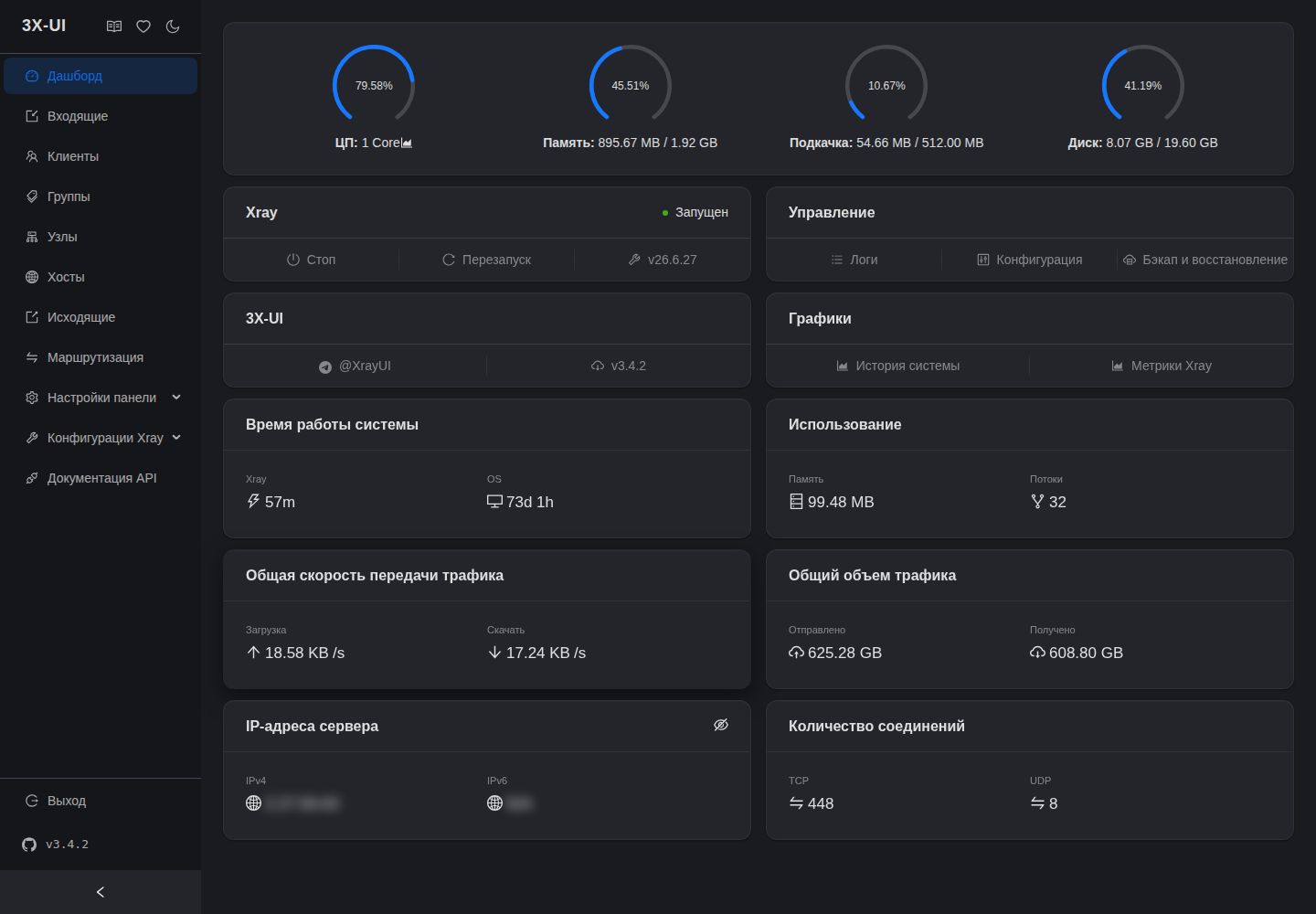
On the left is the menu you'll live by from here on: Dashboard, Inbounds, Clients, Groups, Nodes, Hosts, Outbounds, Routing, Panel Settings, Xray Configs, API Docs.
The dashboard shows the load and Xray status. "Inbounds" is your protocols — those we'll create first. Empty at the start is normal: the service is running, there just aren't any protocols yet.
Verification
Don't take the panel's word for it. Check that the service is alive and the core is in place:
x-ui statusThe output should show both the service itself and Xray inside as running. If the panel won't open at the URL — first check that the port from x-ui settings is open outward in the firewall:
ufw allow PORT/tcp # the panel port from x-ui settingsThe panel is up, the credentials are in hand. Next — we immediately close the obvious holes (the panel bare over HTTP outward is a bad idea) in the "panel settings and hardening" breakdown, and then hang the first protocol in "VLESS + Reality step by step."
Next guide 3x-ui: panel settings and hardening → ↗ Article unclear or something off? Message me and I will help or fix it. @notrealvpn →